FolderPls · Tag layer for Google Drive
Organizing Google Drive without moving a single file
Tags laid over Google Drive, filtered and mapped in a graph: tagging moves no file, and Drive's own permissions still decide who sees what.
Problem
Drive folders stop scaling: as files pile up, finding one means opening folder after folder. Drive's own labels don't close the gap for everyone: only admins create them, and they exist on some Workspace editions, not on personal Gmail accounts.
Constraint
Tagging could not mean reorganizing: adding a tag never moves, renames or rewrites a file, never changes who can see what, and needs no Drive access beyond the files a person chooses.
Approach
We built FolderPls as a layer on top of Drive. It stores a file's Drive ID, name and the tags and notes added to it, never the file's contents. It asks only for access to the files and folders a person picks in Google's own picker, so Drive's permissions still decide what anyone sees. Firestore security rules, tested against the emulator, close each account's tags to every other account, and the long-lived Drive token sits in server-only storage the browser can never read. Tags can expire on their own, and AI tagging runs only after the user approves it, sending file names, types and folder names, never contents.
Result
Live in public beta, free for personal Gmail accounts and on a paid plan for Workspace accounts: files are tagged, filtered by tag, mapped in a knowledge graph and opened in Drive with one click, and none of them has to move.
Developed together with Erkut Yıldırım.
How it works
Screens from the FolderPls panel itself, filled with invented sample files, in the order someone uses it. The panel calls tags “labels”. Scroll, and each one zooms in on the part the text describes.
- folderpls.com01 / 07
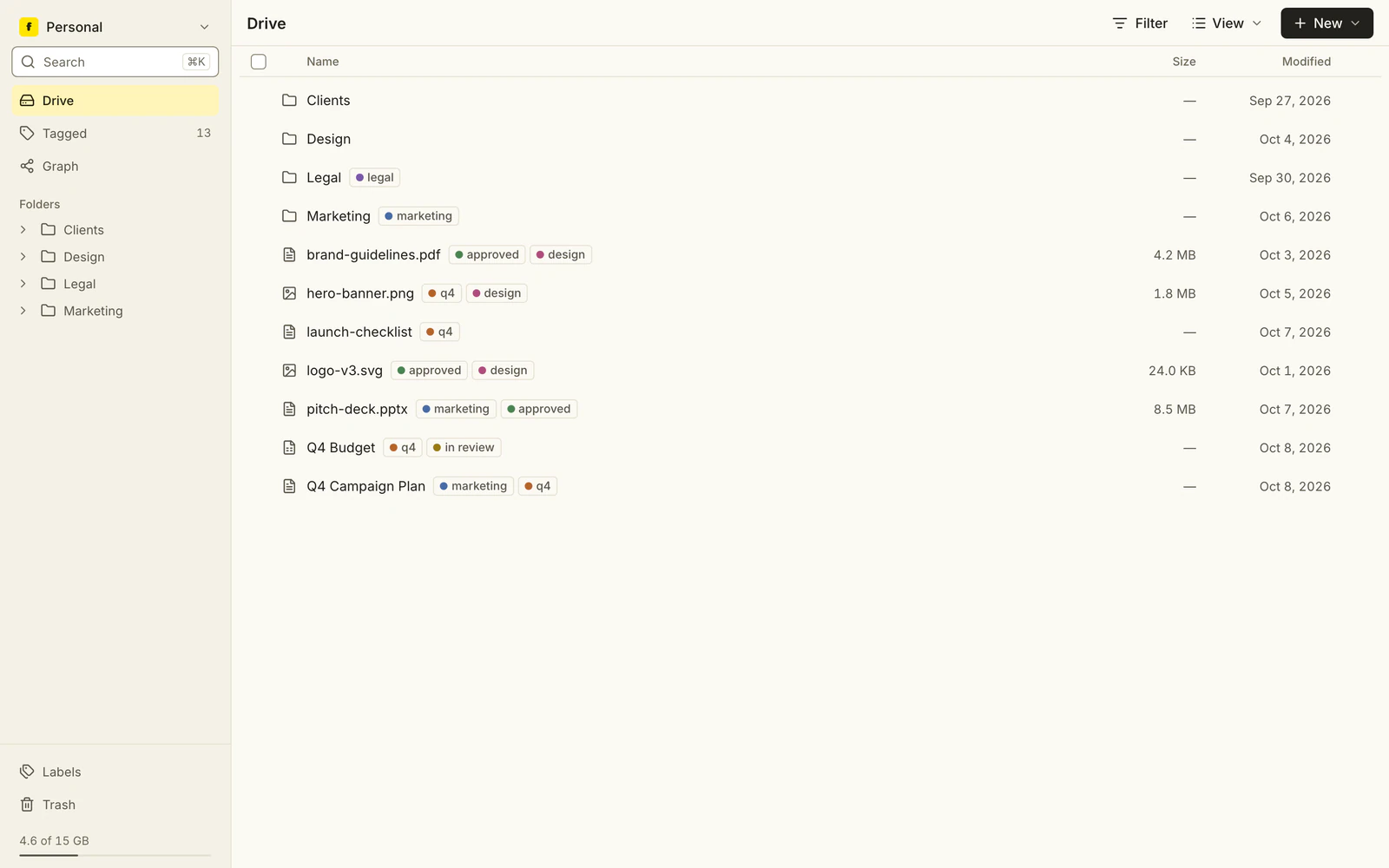
The FolderPls panel: a sidebar with Drive, Tagged, Graph and a folder tree, and a file list where rows such as brand-guidelines.pdf and Q4 Budget carry colored label chips.
01 / 07
Labels laid over your Drive
The panel lists your Drive folder as it is and shows labels such as approved, q4 and legal beside each file. Labelling never renames or moves anything in Drive.
- folderpls.com02 / 07
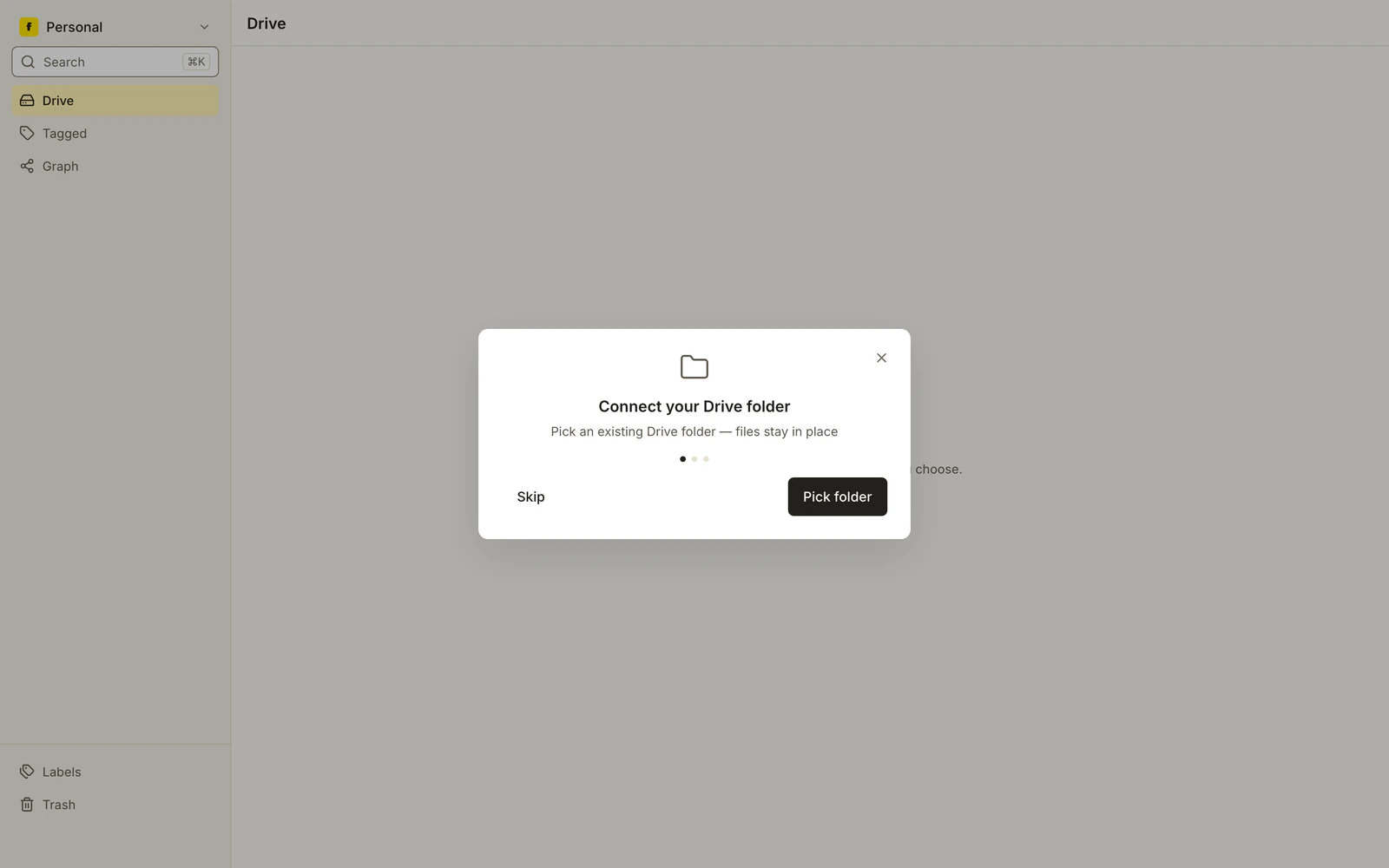
A dialog titled Connect your Drive folder with the line Pick an existing Drive folder, files stay in place, a Skip link and a Pick folder button.
02 / 07
Start from one Drive folder
On the first visit the panel asks for one existing Drive folder, chosen in Google's own picker. Files stay where they are.
- folderpls.com03 / 07
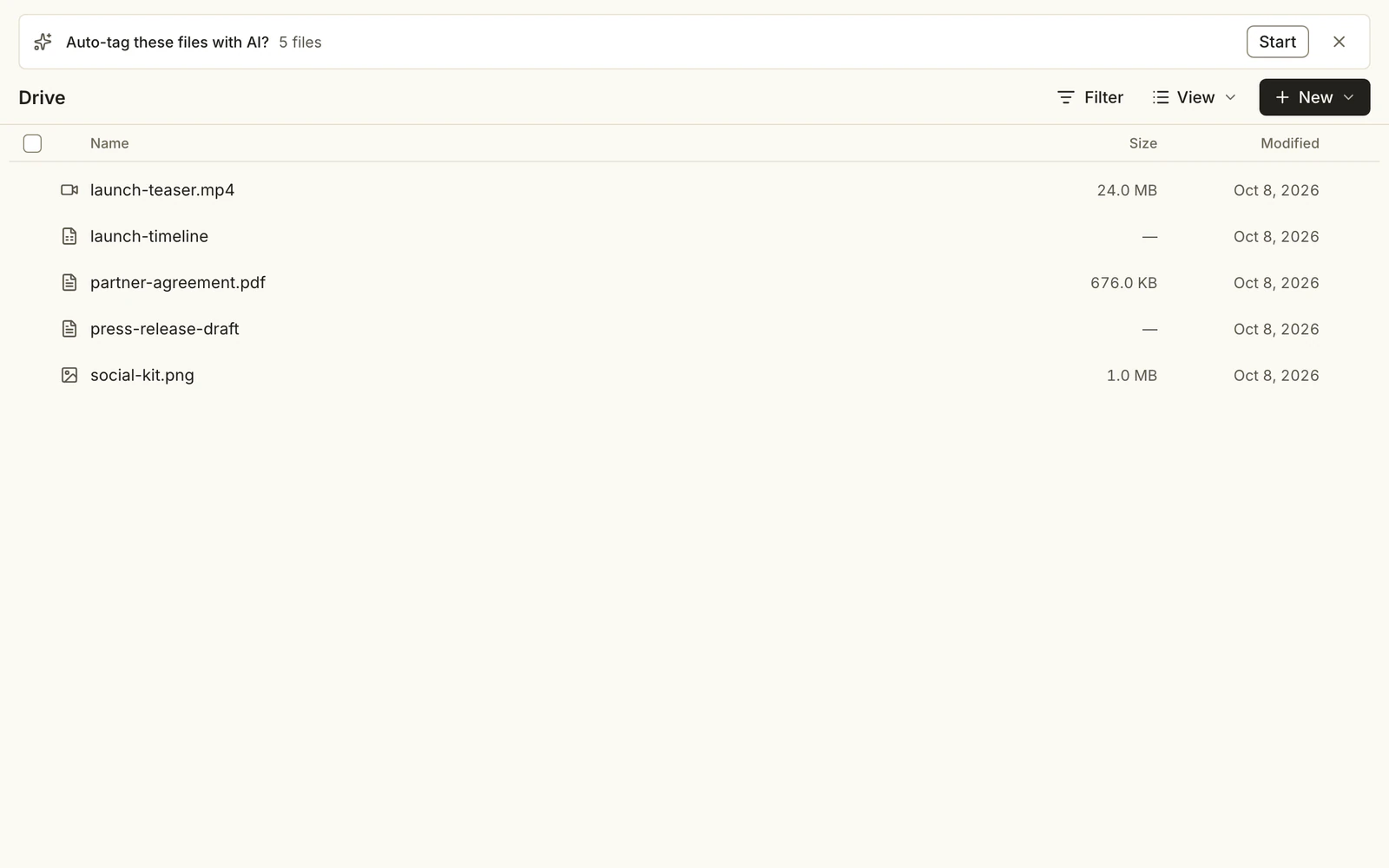
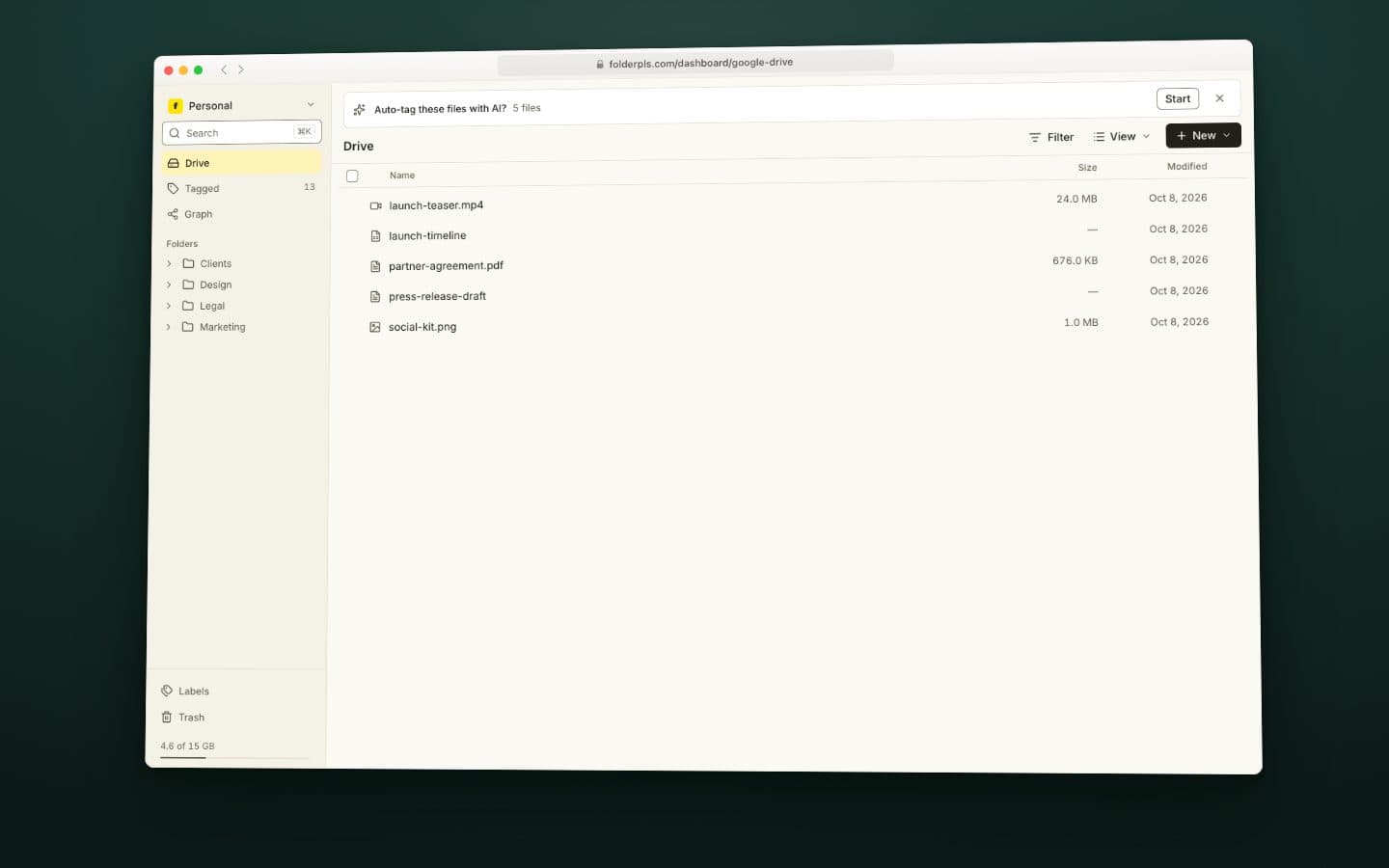
A strip reading Auto-tag these files with AI? 5 files, with a Start button, above five untagged files: launch-teaser.mp4, launch-timeline, partner-agreement.pdf, press-release-draft and social-kit.png.
03 / 07
AI tagging waits for approval
After a folder is picked, a strip offers to tag its files with AI, and nothing runs until you press Start. The model gets file names, types and folder names, never file contents.
- folderpls.com04 / 07
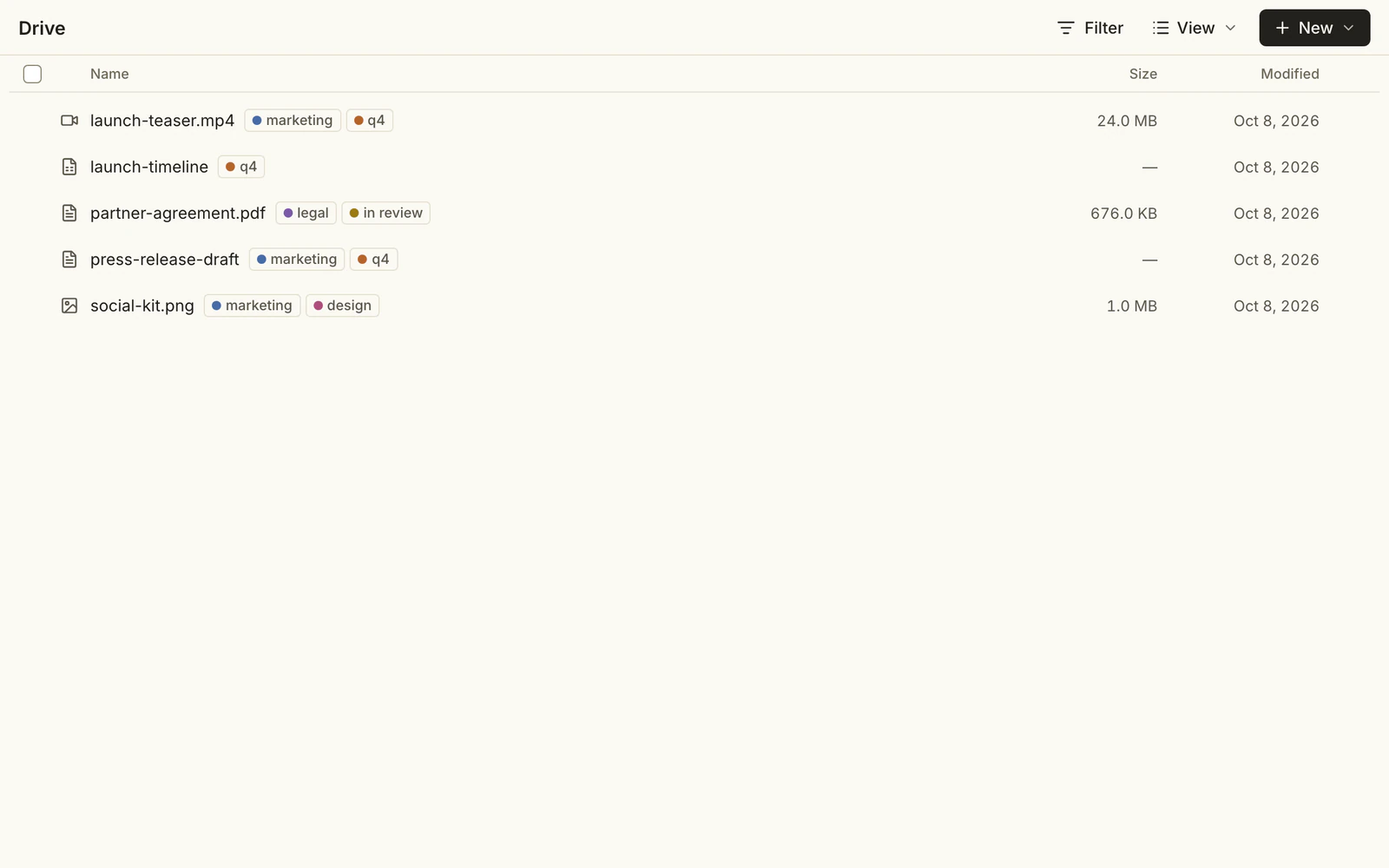
The same five files with label chips: launch-teaser.mp4 marketing and q4, launch-timeline q4, partner-agreement.pdf legal and in review, press-release-draft marketing and q4, social-kit.png marketing and design.
04 / 07
Suggested labels land on files
The suggestions are saved as ordinary labels: existing labels are reused and missing ones are created. Each one can be edited or removed like any other label. The panel also adds labels for a file's type, its folder and how recently it changed.
- folderpls.com05 / 07
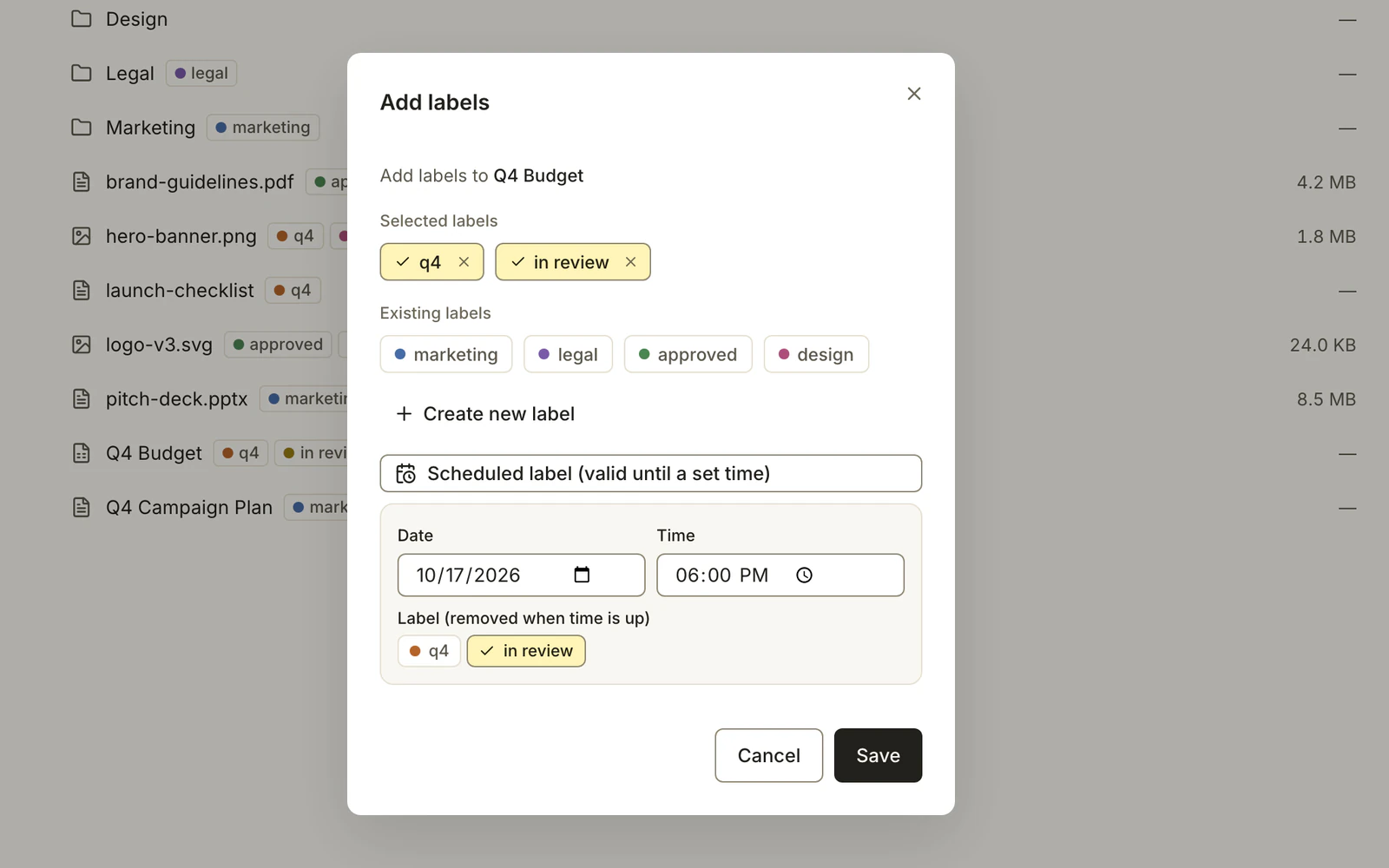
The Add labels dialog for Q4 Budget: selected labels q4 and in review, and a Scheduled label section with date 10/17/2026, time 6:00 PM and in review marked as the label removed when time is up.
05 / 07
Labels with an end date
In the label dialog a label can be given a date and time. Once that moment passes, the label drops off the file the next time the panel loads.
- folderpls.com06 / 07
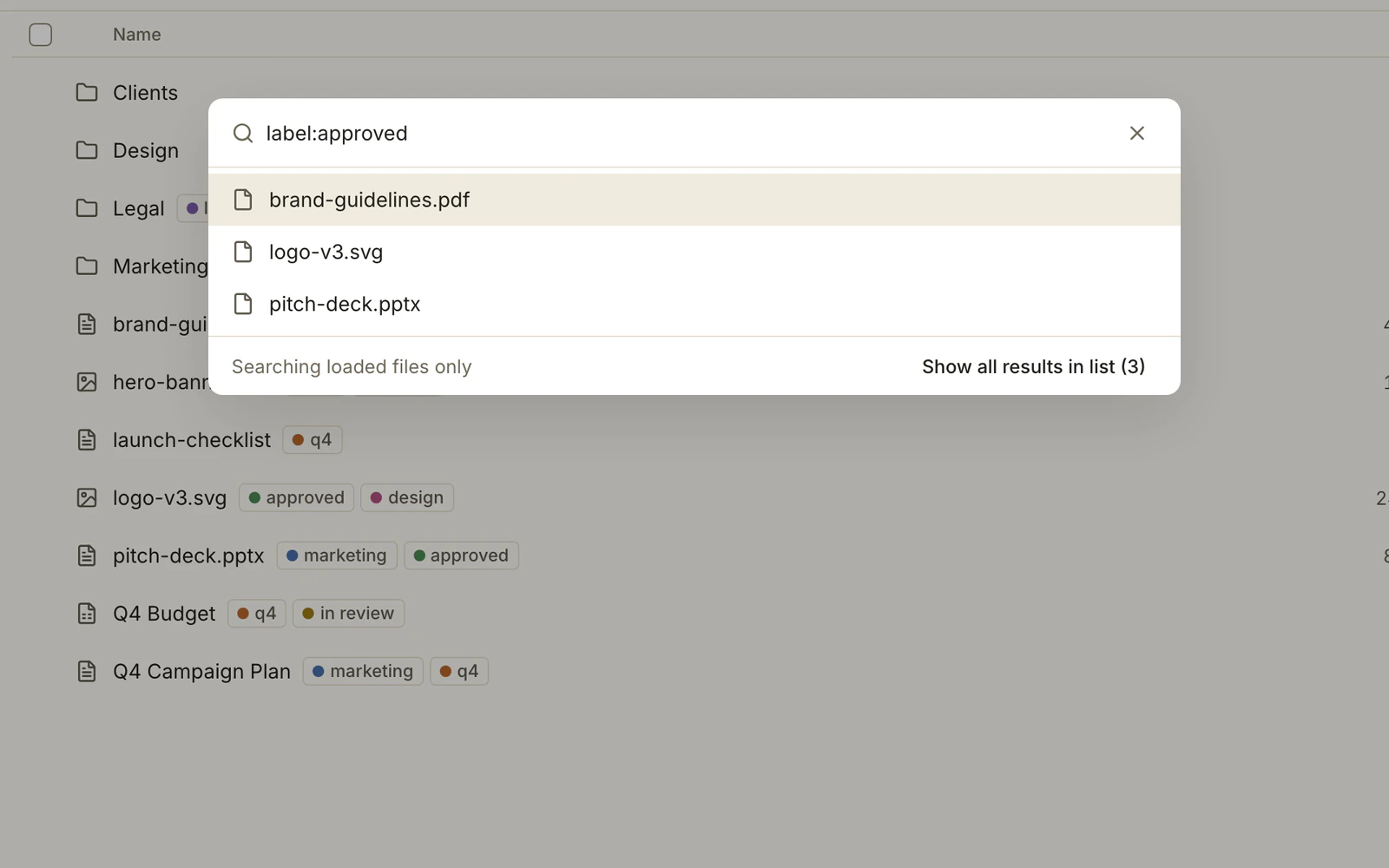
A command palette with label:approved typed, listing brand-guidelines.pdf, logo-v3.svg and pitch-deck.pptx, with the footer Searching loaded files only and Show all results in list (3).
06 / 07
Find files by label
Command-K opens a single search palette. Typing label:approved narrows it to the files that carry that label, and Show all results opens them as a filtered list.
- folderpls.com07 / 07
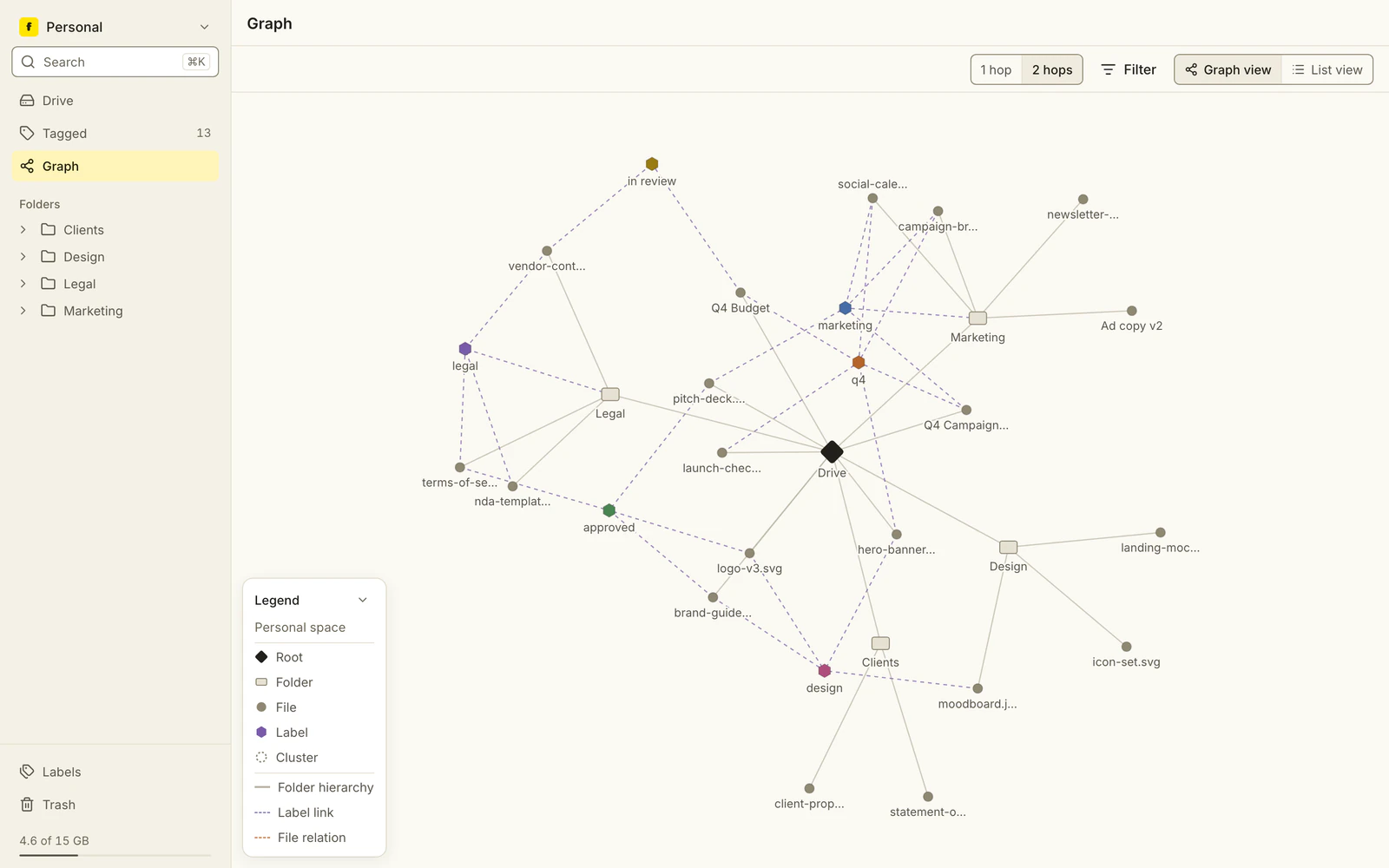
A node graph with a black Drive root, folder boxes such as Marketing, Legal and Design, small file dots, and colored label hexagons such as approved, q4 and legal joined to files by dashed lines; a legend sits at the lower left.
07 / 07
Your Drive as a graph
Graph view draws the folder tree, and at two hops it also links each file to its labels. Files from different folders that share a label are joined through it.
Need something like this?
Send two or three lines: what you have, what is broken or missing, and when you need it. I reply within 12 hours, Monday to Saturday.